

Supercharge Your Analytics with the New Amazon S3 Table: A Step-by-Step Guide
“Information is the oil of the 21st century, and analytics is the combustion engine.”
The tech world witnessed the historic launch of Amazon S3 Tables at the AWS re:Invent, marking a significant step forward in data lake optimization. This new feature is designed to provide storage specifically tailored for tabular data, such as daily purchase transactions, streaming sensor outputs, and ad impressions. By leveraging the Apache Iceberg format, S3 Tables enable seamless querying through widely used engines like Amazon Athena, Amazon EMR, and Apache Spark, giving organizations a powerful tool for handling large-scale, analytical workloads.
Unlike traditional self-managed table storage, Amazon S3 Tables deliver up to 3x faster query performance and 10x more transactions per second. This drastic improvement is paired with the operational efficiency that comes with using a fully managed service, reducing the need for manual maintenance and optimization.
One of the key differentiators of Amazon S3 Tables is its support for the Apache Iceberg table format. Iceberg has emerged as a leading open table format for managing Parquet files, and thousands of AWS customers already rely on it to query datasets containing billions of files spanning petabytes to exabytes of data. With S3 Tables, AWS has integrated the strengths of Iceberg directly into the heart of its data lake architecture, offering users an optimized, fully managed experience.
Table Buckets, Tables, and Namespaces: Key Concepts in Amazon S3 Tables
What is a Table Bucket
A table bucket is a special type of S3 bucket that goes beyond the functionality of traditional general-purpose buckets and directory buckets. Instead of acting as a general storage location for files, a table bucket functions as an analytics warehouse. This enables the storage and management of Iceberg tables — highly optimized, queryable datasets with robust schema definitions.
What is a Table
A table in the context of Amazon S3 Tables is a structured dataset stored within a table bucket. Unlike raw Parquet, CSV, or ORC files in traditional S3 buckets, an S3 Table is a fully managed, structured storage object, leveraging Apache Iceberg to maintain schemas, partitions, and metadata for fast and efficient querying.
What is a Namespace
A namespace is a logical grouping of related tables within a table bucket. It acts as an organizational layer, much like a folder in a traditional file system or a schema in a relational database. Namespaces can be referenced from access policies in order to simplify access management.
The relationship between Table Buckets, Tables, and Namespaces can be visualized as follows:
Table Bucket
Table Bucket
└── Namespace 1
└── Table A (Purchase Data)
└── Table B (Customer Data)
└── Namespace 2
└── Table C (IoT Sensor Data)
└── Table D (Ad Impressions)
How to Set Up and Use Amazon S3 Tables
Before we dive into the step-by-step process of setting up AWS S3 Tables, it’s important to note that this feature is currently only available in select AWS regions. As of now, AWS S3 Tables can be utilized in the following regions:
** US East (N. Virginia) — us-east-1
US East (Ohio) — us-east-2
US West (Oregon) — us-west-2 **
If you are working in an AWS region outside of these, you may not have access to AWS S3 Tables. Be sure to select one of the supported regions when configuring your resources.
Prerequisites
- An AWS account with active billing
- AWS CLI installed or access to AWS CloudShell in one of the supported regions (N. Virginia, Ohio, or Oregon)
- Spark setup
Now that we have prerequisites out of the way, let’s dive into creating a table bucket and put a few tables in it. I am using AWS Command Line Interface (CLI) in AWS CloudShell but you can install it on your local and achieve the same.
First step is to create a table bucket:
$ aws s3tables create-table-bucket --name jbarr-table-bucket-2 | jq .arn
"arn:aws:s3tables:us-east-1:<Account-ID>:bucket/harsh-table-bucket-01"
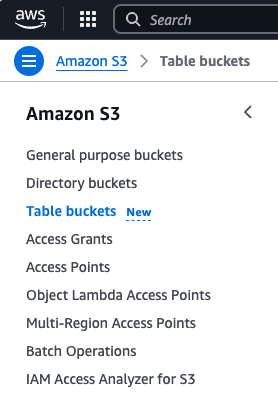
The same can be verified in the console as by choosing the option on side panel in S3:

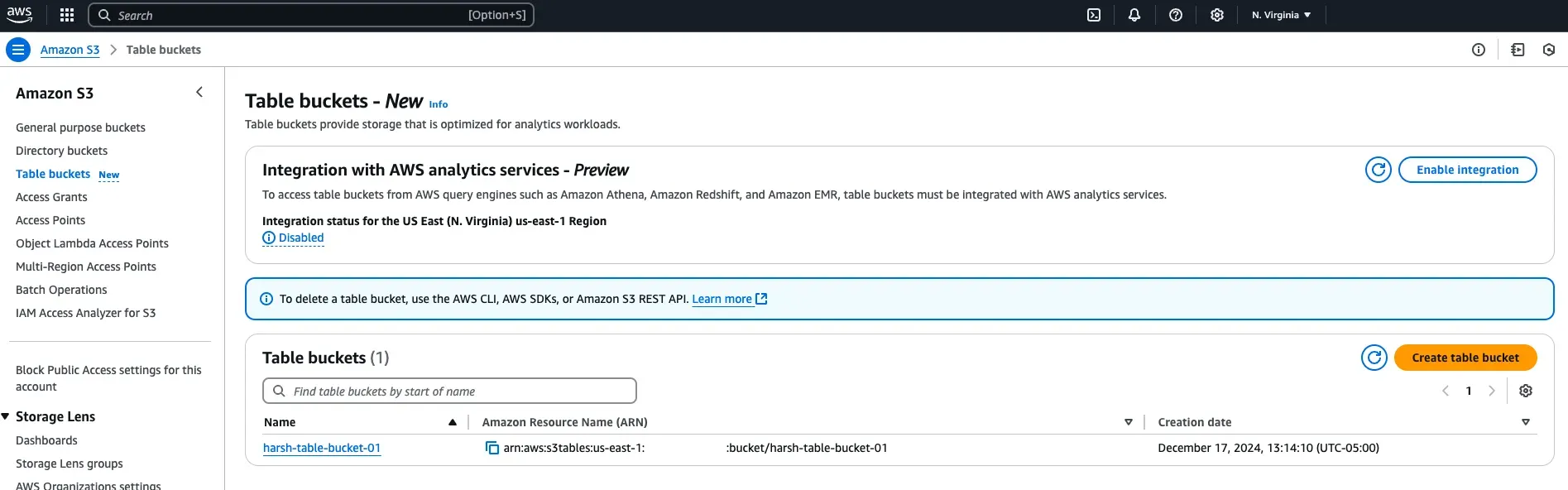
To be able to query the data from AWS services we need to create integration with AWS analytics services for table buckets. This integration must be done once per AWS Region.
On the S3 tables console you will see and option to enable the integration right away, click on enable integration:
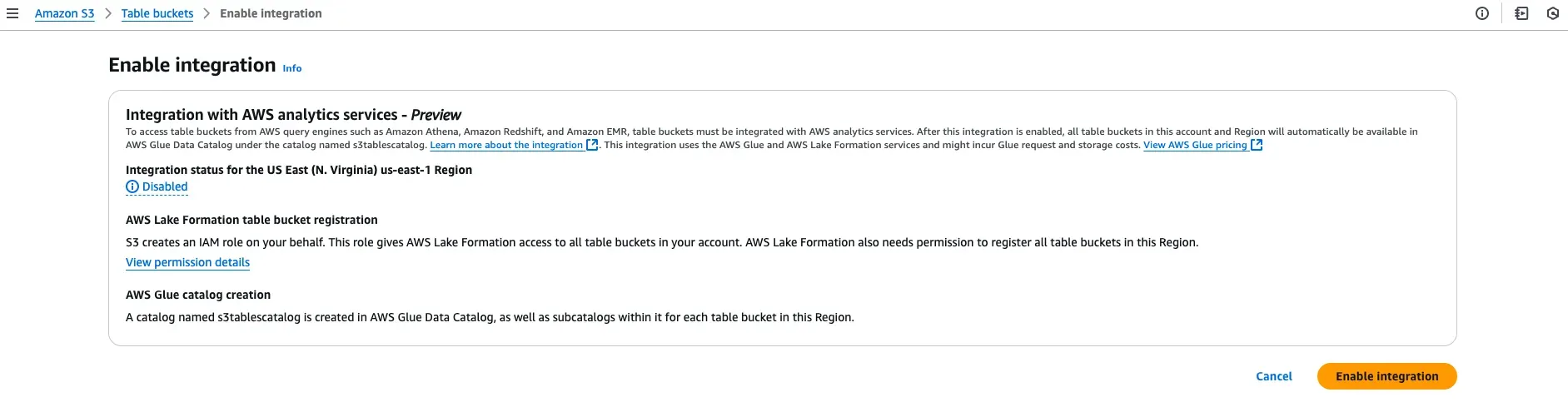
Choose enable integration on the next screen post reading the details carefully:
To run the following spark session commands on EMR, we need to create an Iceberg EMR cluster and following are the steps for that:
Prerequisites:
aws glue create-database --region us-east-1 --catalog-id "<Account-ID>" --database-input \
'{
  "Name": "resource-link-name",
  "TargetDatabase": {
    "CatalogId": "<Account-ID>:s3tablescatalog/harsh-table-bucket-01",
    "DatabaseName": "my_namespace"
  },
  "CreateTableDefaultPermissions": []
}'- Create the default service role for Amazon EMR (EMR_DefaultRole_V2). For details, see Service Role for Amazon EMR (EMR role)
- Create the Amazon EC2 instance profile for Amazon EMR (EMR_EC2_DefaultRole). For details, see Service role for cluster EC2 instances (EC2 instance profile).
- Attach the AmazonS3TablesFullAccess policy to the IAM principal you use to create the Amazon EMR cluster.
- Create the default service role for Amazon EMR (EMR_DefaultRole_V2). For details, see Service Role for Amazon EMR (EMR role)
- Create the Amazon EC2 instance profile for Amazon EMR (EMR_EC2_DefaultRole). For details, see Service role for cluster EC2 instances (EC2 instance profile).
- Attach the AmazonS3TablesFullAccess policy to the IAM principal you use to create the Amazon EMR cluster.
To setup an Amazon EMR cluster to query tables with Spark
- Create an Iceberg cluster in Amazon EMR.
- Connect to the Spark primary node using SSH.
- Enter the following command to initialize a Spark session for Iceberg that connects to your tables.
spark-shell \
--conf spark.sql.catalog.s3tablesbucket=org.apache.iceberg.spark.SparkCatalog \
--conf spark.sql.catalog.s3tablesbucket.type=glue \
--conf spark.sql.catalog.s3tablesbucket.warehouse=s3://harsh-table-bucket-01 \
--conf spark.sql.defaultCatalog=s3tablesbucket \
--conf spark.sql.extensions=org.apache.iceberg.spark.extensions.IcebergSparkSessionExtensions
Let’s create a namespace now in the table bucket, we can do it either with a spark query engine or aws cli:
#aws-cli
$ aws s3tables create-namespace --table-bucket-arn arn:aws:s3tables:us-east-1:<Account-ID>:bucket/harsh-table-bucket-01 --namespace my_namesapce
{
    "tableBucketARN": "arn:aws:s3tables:us-east-1:<Account-ID>:bucket/harsh-table-bucket-01",
    "namespace": [
        "my_namesapce"
    ]
}
#spark session
spark.sql(" CREATE NAMESPACE IF NOT EXISTS s3tablesbucket.my_namespace")Next step is to create a table in the namespace we created, let’s create 3 different tables here using both aws cli and spark session:
#aws-cli
$ aws s3tables create-table \
>     --table-bucket-arn arn:aws:s3tables:us-east-1:<Account-ID>:bucket/harsh-table-bucket-01 \
>     --namespace my_namesapce \
>     --name my_table_01 --format ICEBERG
{
    "tableARN": "arn:aws:s3tables:us-east-1:<Account-ID>:bucket/harsh-table-bucket-01/table/94a006a1-9d65-4636-93fa-7a4e6ee5b003",
    "versionToken": "6afd51a0edf393c51741"
}
spark.sql(
" CREATE TABLE IF NOT EXISTS s3tablesbucket.example_namespace.`example_table` (
id INT,
name STRING,
value INT
)
USING iceberg "
)We can use the above query to create another table with name “my_table_02”. Before we go ahead with querying the data there in one important thing we need to do. We need to add the permission for the user to query the data in Lake formation. In our case I have given super permission on the catalog (The user granting the permission should be a LakeFormation Admin). Here is a reference link on how to do it — LINK.
Now, you can perform all the general SQL operations using spark on the S3 table bucket as below:
spark.sql("""CREATE NAMESPACE IF NOT EXISTS mytablebucket.mydata""")spark.sql("""CREATE TABLE IF NOT EXISTS mytablebucket.mydata.table1
(id INT,
name STRING,
value INT)
USING iceberg
""")spark.sql("""INSERT INTO mytablebucket.mydata.table1
VALUES
(1, 'Jeff', 100),
(2, 'Carmen', 200),
(3, 'Stephen', 300),
(4, 'Andy', 400),
(5, 'Tina', 500),
(6, 'Bianca', 600),
(7, 'Grace', 700)
""")We can list thes tables using aws cli as well:
$ aws s3tables list-namespaces --table-bucket-arn $ARN | jq .namespaces[].namespace[]
"mydata"
$
$ aws s3tables list-tables --table-bucket-arn $ARN | jq .tables[].name
"table1"
Conclusion
The introduction of AWS S3 Tables marks a significant step forward in how we design and optimize modern data lakes. With its 3x query performance and 10x increase in transactions per second, S3 Tables enable faster analytics, better concurrency, and more efficient data storage. These improvements eliminate some of the traditional bottlenecks associated with data lake architectures, making them a must-have tool for organizations looking to modernize their data infrastructure.
By adopting S3 Tables early, you position your organization at the forefront of this transformation, gaining a competitive edge with faster insights, reduced costs, and better scalability. As data volumes continue to grow exponentially, having the ability to query large datasets with high speed and efficiency is no longer a luxury — it’s a necessity. If your data workloads demand agility, performance, and scale, now is the time to embrace AWS S3 Tables. Early adopters will not only experience immediate benefits but also future proof their data lakes for upcoming advancements.
If you encounter any challenges while following this tutorial, you can leverage Amazon Q, which provides guidance and support for AWS services. We're here to help take your data infrastructure to the next level.
Let’s build smarter, faster, and more efficient data lakes together!